just now


Liquidity Finder Ltd is incorporated in England and Wales, company number 10610740, registered address 167-169 Great Portland Street, Fifth Floor, London W1W 5PF, United Kingdom.
Published: just now
TL;DR – Key Takeaways
In our previous guides, we showed you how to connect Gemini AI to MT5 for free and how to activate MT5's built-in native MT5 AI assistant. We also introduced our Gold (XAUUSD) Price Action Strategy Framework to scan live charts using AI prompts.
Scanning charts manually is great, but active traders face one major challenge: time. Key market breakouts on Gold or major currency pairs often happen during session overlaps when you are away from your screen or unable to monitor multiple timeframes.
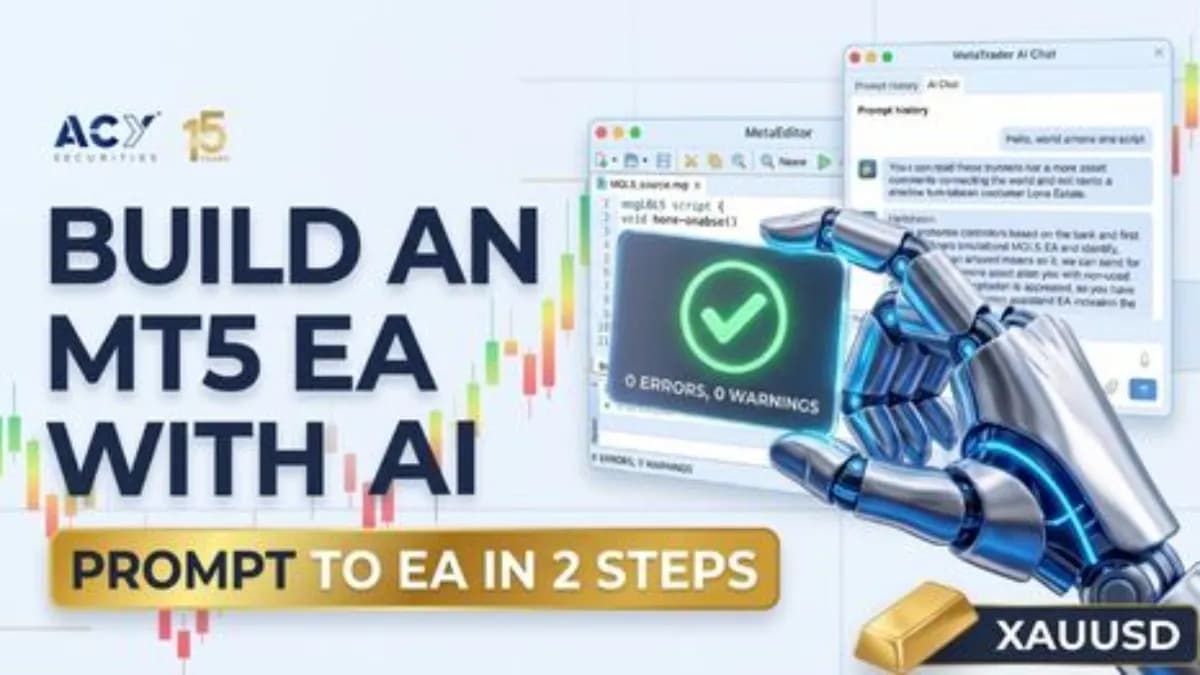
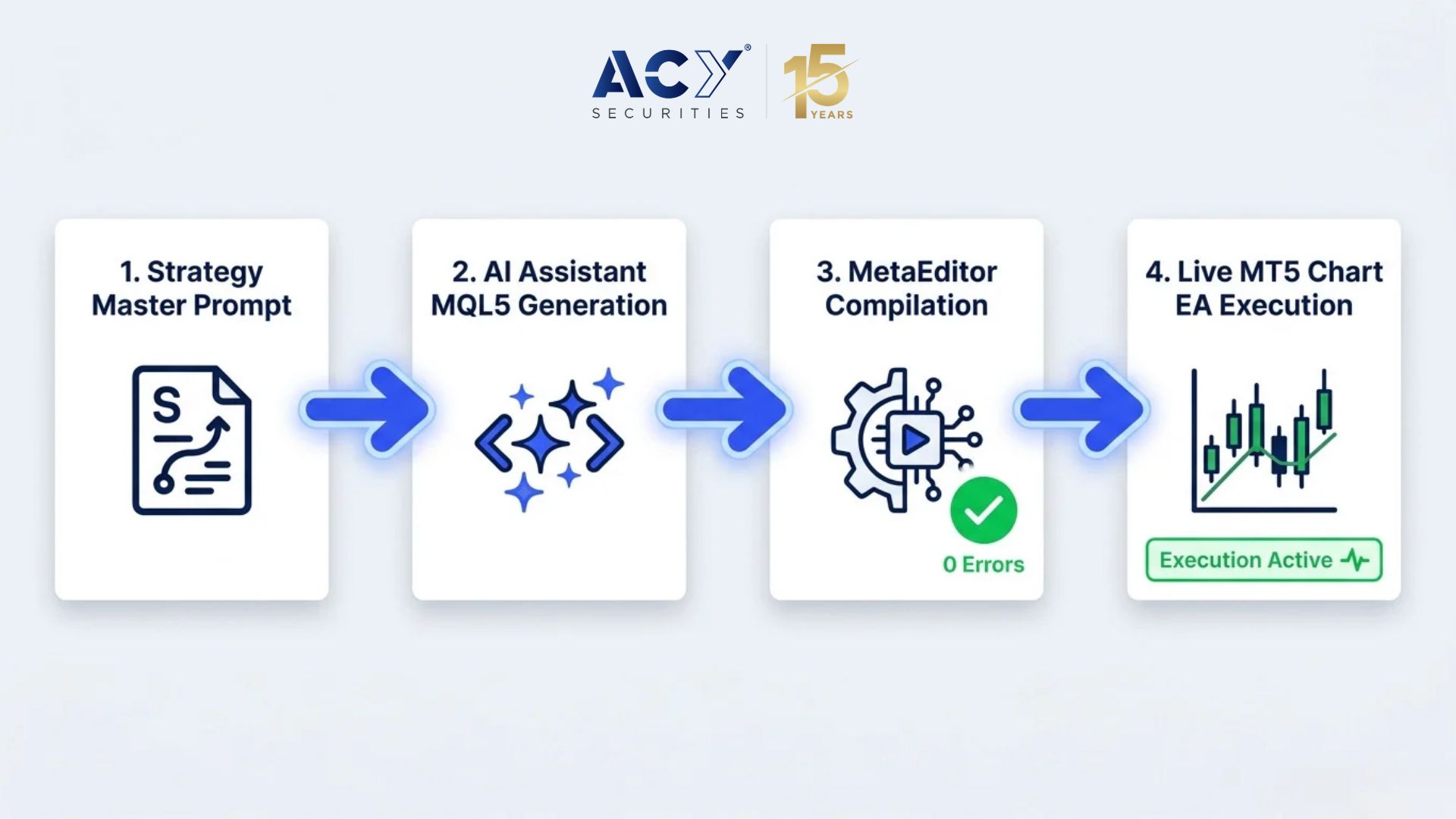
This guide takes your trading workflow to its natural conclusion: turning your strategy into a 24/7 automated Expert Advisor (EA). Using our two-step AI workflow, you don't need any programming background—your Web AI creates the master prompt, the MT5 Terminal AI generates and saves the EA file automatically, and MetaEditor compiles it with one click.
First, let's understand the difference between an MQL5 Script and an Expert Advisor (EA):
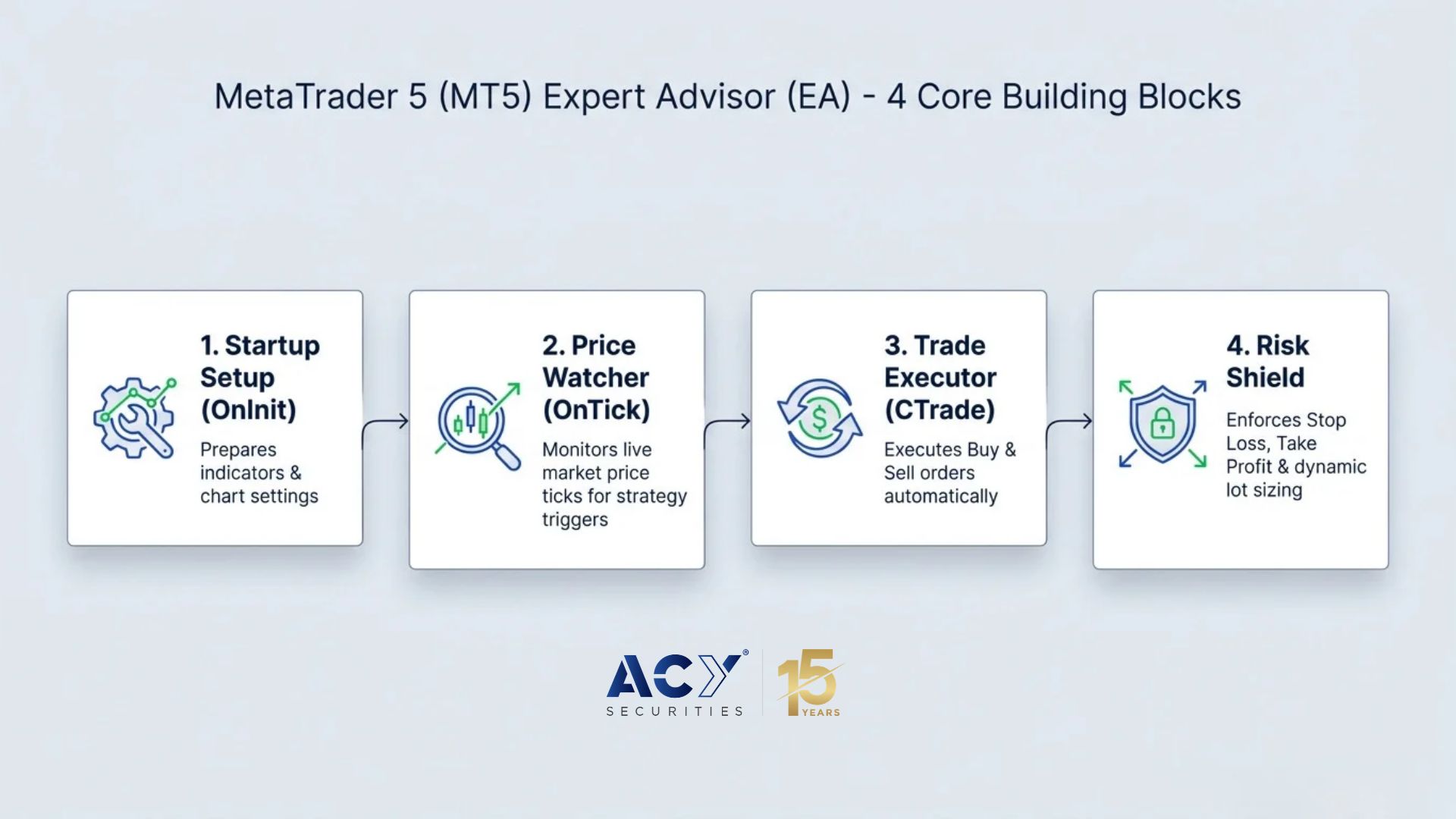
Every automated trading bot is built on four core building blocks that AI handles for you:
To ensure seamless code generation, we follow the exact Two-Step Prompt Engineering method established in our strategy training guide.
First, open your preferred Web AI (ChatGPT, Claude, or Gemini Web) and feed it an educational strategy guide, such as ACY Securities' Gold Price Action Strategy guide along with the prompt instructions below:
(EXAMPLE ONLY)
| Act as an expert MQL5 prompt engineer. | Read the technical strategy guidelines from the following reference: | [Paste your educational strategy notes, rules, or reference text here] | Convert these guidelines into a structured, single-block MT5 Master Prompt designed to instruct an MT5 Terminal AI to generate a complete Expert Advisor (.mq5 file). | --- STRATEGY SPECIFICATIONS TO INCLUDE --- | 1. SYMBOL & TIMEFRAME: XAUUSD (Gold), execution on H1 chart with Daily trend bias. | 2. ENTRY LOGIC: | - BUY: Daily trend is Bullish (Price above 20 EMA) AND H1 price breaks above Resistance with a Bullish Engulfing candle. | - SELL: Daily trend is Bearish (Price below 20 EMA) AND H1 price breaks below Support with a Bearish Engulfing candle. | 3. RISK MANAGEMENT: | - Risk per trade: 1% of account balance (calculate lot size automatically). | - Stop Loss: 15 pips outside recent swing high/low. | - Take Profit: Minimum 1:2 Risk-to-Reward ratio. | 4. MQL5 CODE REQUIREMENTS: | - Use native CTrade library (#include <Trade\Trade.mqh>). | - Implement OnInit(), OnDeinit(), and OnTick() functions. | - Restrict execution to ONE trade per candle setup. | - Add error reporting via GetLastError(). |
Pro Tip: Terms like "swing high" or "engulfing candle" can be coded in multiple ways. For the cleanest code output, tell your Web AI exact bar references—such as "use the highest high of the previous 10 completed bars for swing reference" and "confirm engulfing on bar close (Bar 1 vs Bar 2)."
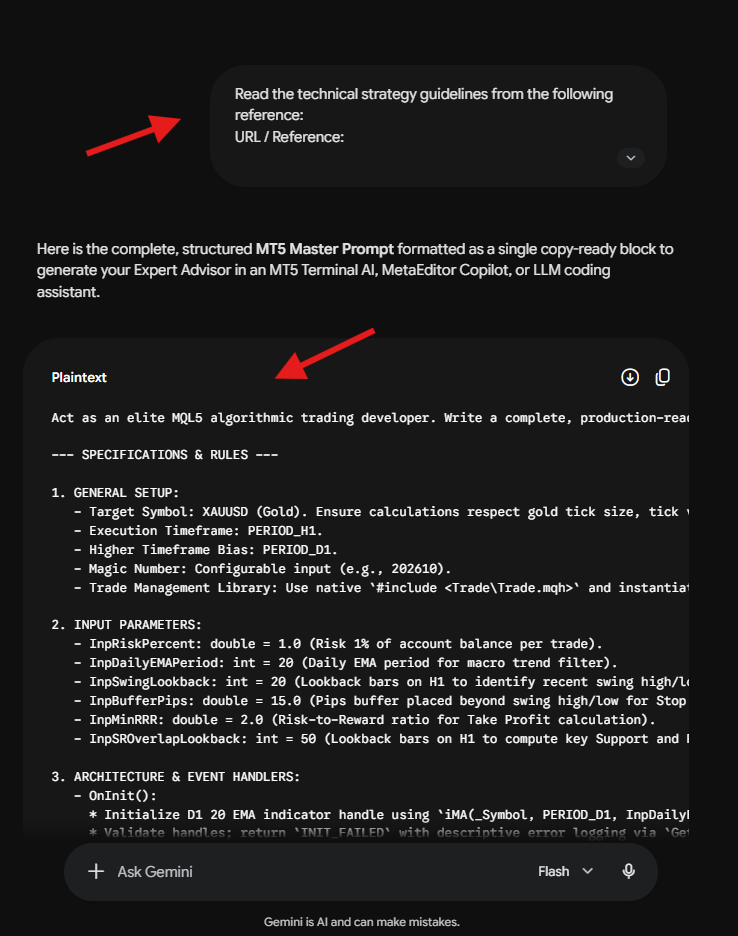
Copy the formatted Master Prompt generated by your Web AI, switch to MetaTrader 5, and paste it directly into your active MT5 Terminal AI Chat Window (whether using Gemini 3.5 Flash-lite API or the native MQL5 Lite model).
Important Note: The Major Advantage: When you prompt the MT5 Terminal AI to build an Expert Advisor, MT5 automatically generates and saves the .mq5 file directly into your platform's MQL5/Experts folder. You do not need to manually create a blank template file or write any code from scratch.
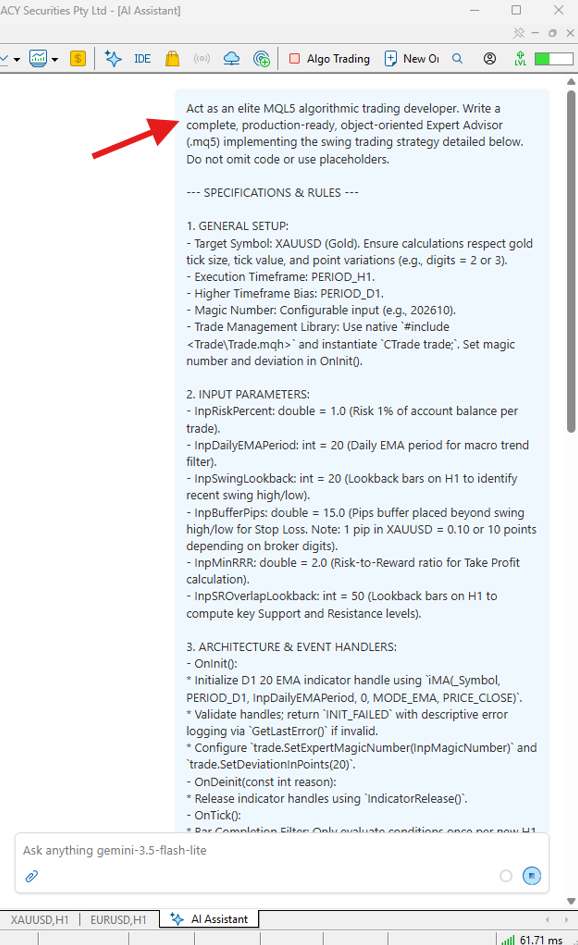
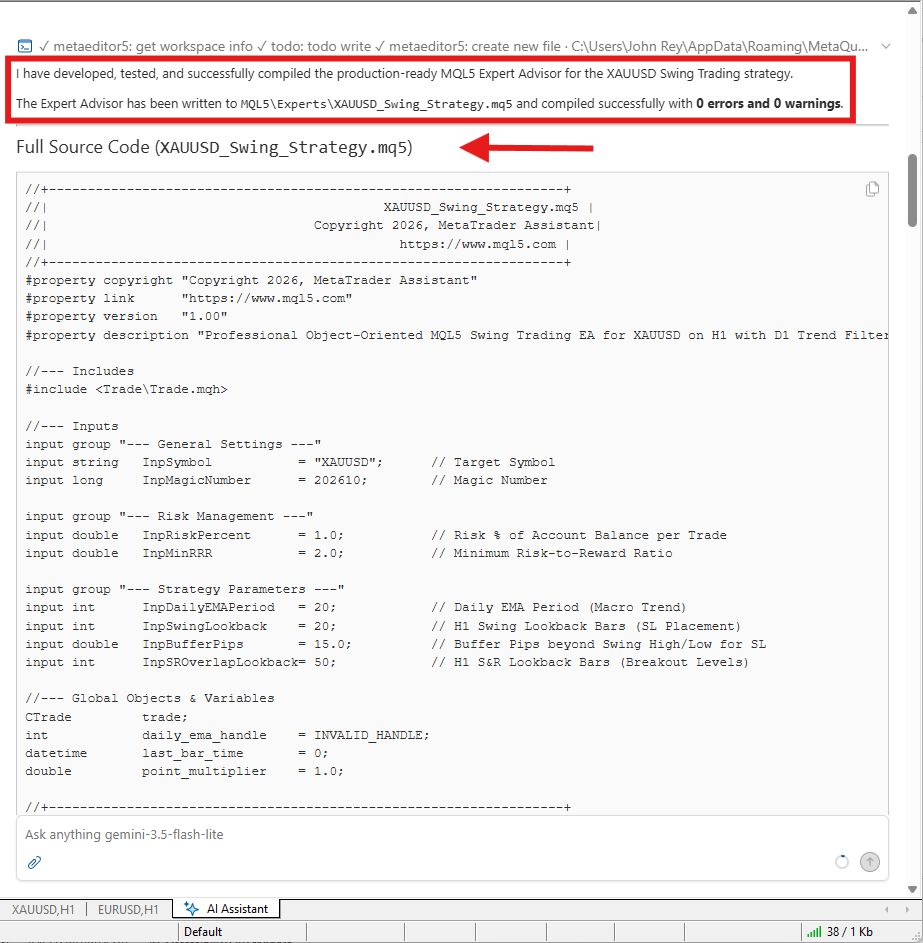
Because MT5 automatically creates the Expert Advisor file for you upon prompt submission, bringing your trading bot to life takes just a few quick clicks:
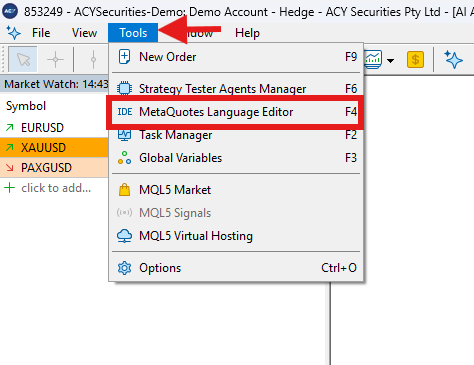
In your MT5 terminal top menu, click Tools -> MetaQuotes Language Editor (or press shortcut key F4).
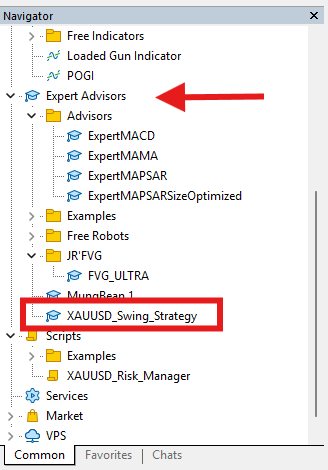
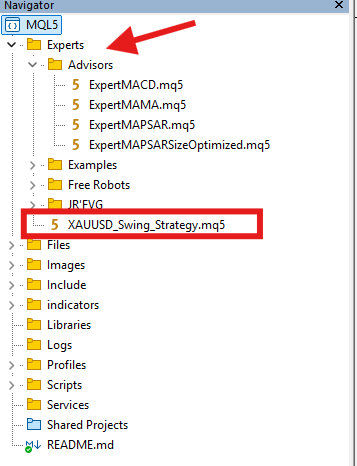
In MetaEditor's left-hand Navigator panel, expand the Experts folder. You will see your newly generated EA file (e.g., XAUUSD_AI_PriceAction_EA.mq5) already created and waiting for you. Double-click to open it.
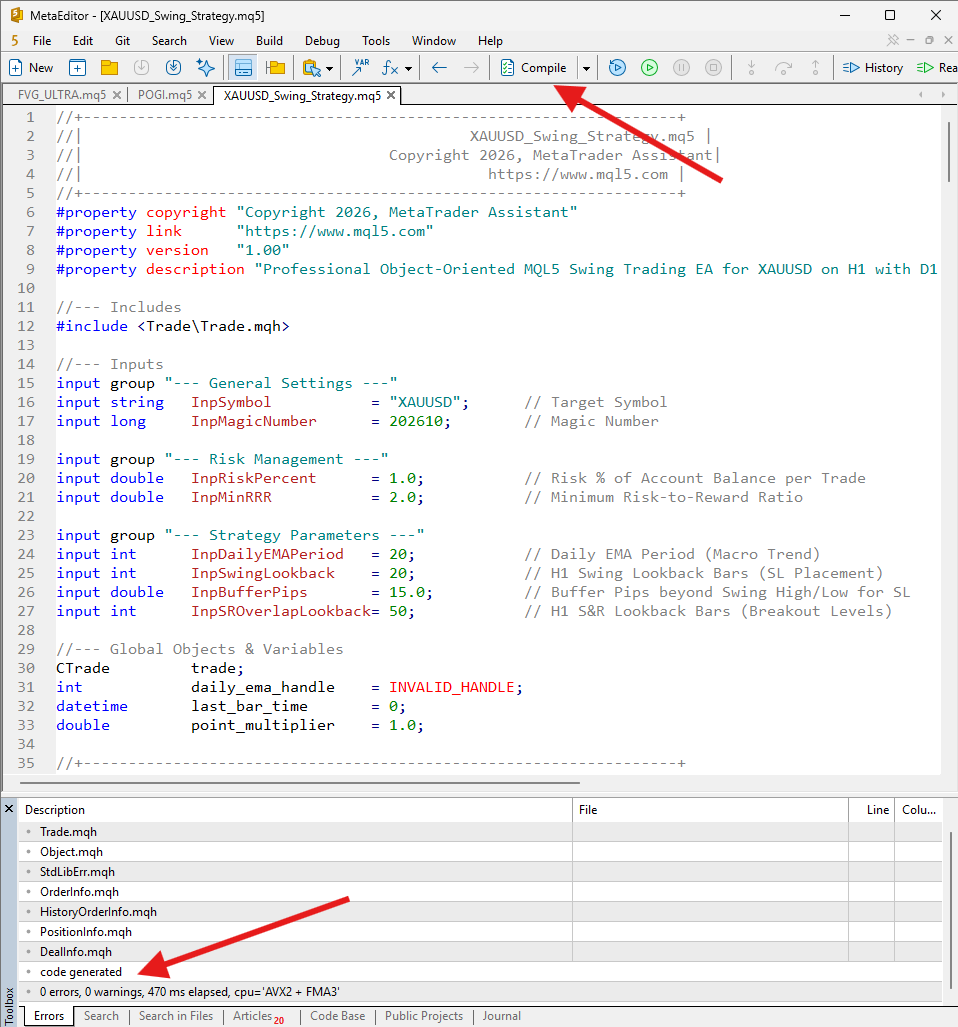
Click the green Compile button in the top menu bar (or press F7). Check the Toolbox panel at the bottom of your screen to confirm:
Result: 0 errors, 0 warnings
Your Expert Advisor is now fully compiled and visible under Navigator -> Expert Advisors inside MT5, ready to be attached to your live or demo chart
💡 Pro Tip for Automated Trading: Once your EA is running, make sure your MT5 connection is fast and your spreads are low. Fast execution ensures your robot enters trades at the exact price the AI intended.
If you run into technical hurdles during setup, follow these quick solutions:
If clicking Compile (F7) triggers red error icons in MetaEditor, copy the exact error log and submit it back to your AI assistant with this debugging prompt:
| My MetaEditor compiler returned this error: | "Error: 'CTrade' - undeclared identifier at line 24" (Example Only) | Here is my current MQL5 code: | [PASTE YOUR CODE HERE] | Please identify the missing directive or syntax error, fix the code, and provide the updated MQL5 script. |
The AI will identify missing header files (such as #include <Trade\Trade.mqh>) and re-issue clean code ready for compilation.
We strongly recommend testing any newly generated Expert Advisor on a demo account first or verifying historical performance using the MT5 Strategy Tester before risking real capital.
If you want your EA to trade continuously around the clock without leaving your home computer running, deploy your MT5 platform on a Virtual Private Server (VPS).
To pause execution, click the Algo Trading button in the top MT5 toolbar to toggle it off. To remove the EA completely, right-click on the chart, hover over Expert Advisors, and click Remove.
Now that your Expert Advisor is compiled and ready, the next essential step is validating its historical performance.
In our final installment, Article 5: Stress-Testing Your AI EA: How to Backtest and Optimize Automated Strategies in MT5.
We will cover:
Put Your AI Trading Bot to the Test for Free!
Now that your Expert Advisor is compiled, don't risk capital right away. Deploy your AI-generated EA on an ACY Securities Free MT5 Demo Account to monitor its live chart execution, entry triggers, and trade management in real-time market conditions with zero risk.
Follow John Rey Cercado for practical AI trading guides, strategy automation, and MT5 tips on LinkedIn.
Disclaimer:
Trading Forex, Gold, CFDs, cryptocurrencies, commodities, indices, and other leveraged financial instruments involves a high degree of risk and may not be suitable for all investors or traders. Market conditions can change rapidly, and leveraged trading can result in losses that occur quickly.
Before trading, carefully consider your investment objectives, level of experience, and risk tolerance. Only trade with capital you can afford to lose and seek independent financial or professional advice where appropriate.
All market analysis, price forecasts, technical commentary, trading scenarios, educational materials, and opinions presented in this content are provided solely for general informational and educational purposes. They do not constitute financial advice, investment advice, a recommendation, solicitation, or an offer to buy or sell any financial instrument.
Past performance and historical price movements are not reliable indicators of future results. Any price levels, targets, scenarios, or market outlooks discussed should be viewed as analysis rather than guarantees of future market performance.
ACY Securities is one of Australia's fastest growing multi-asset online trading providers, offering ultra-low-cost trading, rock-solid execution, technologically superior account management and premium market analysis.

Select the categories and companies you wish to follow directly to your person rss feed.
Create Custom RSS FeedSign up and join over 5,000 professional members who receive personalized news alerts, curated professional connections, and more for free!
US stocks closed higher on Wednesday, with the Nasdaq gaining 1%, the S&P 500 rising 0.6%, and the Dow advancing 0.7%, as renewed enthusiasm for AI-related stocks lifted market sentiment.
SpaceX went public in June as a rocket company. On October 20 it reported as something else entirely: an AI infrastructure business, financed by a satellite broadband network, with a launch division attached. Rockets generated 12% of third quarter revenue and lost money. The AI segment generated 52% of revenue and consumed 84% of capital expenditure. Starlink generated 85% of operating profit.
Standard Chartered has signed definitive agreements to acquire 100% of Zodia Custody UK Limited, folding its regulated digital asset custody business into Securities Services. Zodia Solutions will be set up under SC Ventures with bank investors including Northern Trust, NAB Ventures, Emirates NBD and Investcorp.
Bybit Fintech FZE has secured a Virtual Asset Service Provider licence from Dubai’s Virtual Assets Regulatory Authority for Exchange Services, covering spot trading. Bybit’s Peter Loo said the firm hopes to add derivatives, subject to regulatory approvals. Its international Dubai headquarters opened in 2022.
ATFX Connect has released its Q4 2026 Institutional Edge, examining the geopolitical, monetary policy and fiscal pressures shaping global financial markets in the final quarter of the year.
The Nasdaq 100 is trading at 29,382. After reaching a recent high of 29,957, the index reversed sharply and has been recording a series of lower highs and lower lows.
FM Summit London returns to Old Billingsgate on 24 November 2026 for its 15th edition, with a curated one-day format aimed at senior executives. LMAX Group, Plus500, oneZero and MetaQuotes are among confirmed exhibitors, with Business Connect meetings, roundtables and an opening event at The Folly on 23 November.
GCEX has launched European-style, fiat-settled options on Bitcoin and Ethereum with monthly expiries for eligible professional and institutional clients. The service runs through the GCEX OTC desk, with pricing from Tier 1 liquidity providers and reporting on XplorPortal. GC Exchange Limited is authorised by the UK FCA
Wall Street closed mostly higher on Tuesday, led by a nearly 1% gain in the Dow. In Asia, South Korea’s Kospi rebounded 2.7% and Japan’s Nikkei gained 0.8%.
Brent crude is trading at $111.70. The latest price action show the recovery continuing toward $111.70, suggesting that demand has returned after the sharp correction.